← All work

CORE

A web drawing tool that lets refrigeration plant teams draw, document and analyse their plant layouts without CAD. It started life as Cedar and shipped as CORE.

RoleUX/UI Designer
ClientNeosilica for Cold Core, through CES
Timeline2023 – 24, in phases
PlatformWeb, desktop and tablet landscape
The tool in 48 secondsSound on · 0:48
In one line

Plant layouts lived in CAD files and emailed PDFs. I designed a tool where every machine on the drawing carries its own data, so the drawing becomes the plant's record.

The problem

Drawings that knew nothing

Refrigeration plants are drawn in expensive CAD software, by engineers, and shared as static PDFs. Plant managers can't edit them, feedback arrives as notes on printouts, and numbers like compressor capacity live in separate spreadsheets.

Neosilica brought us the project for Cold Core, a refrigeration company. Stakeholders wanted drag-and-drop drawing without CAD skills, a library of real engineering objects, exports for decision-makers, and data that could feed load analysis.

There were no direct competitors to copy. Plants were being explained with general tools like diagrams.net, and the client sat between us and the end users, which made the requirements hard to pin down at first.


How might welet a plant manager draw a layout that's accurate enough for engineers, and useful enough to run the plant on?

Research

Getting to the real users

At first I was asked to start wireframing without a brief. I wasn't getting answers through the middleman, so I contacted the end client directly and asked for stakeholder meetings. I couldn't interview end users, so stakeholder interviews, the existing tools and the drawings themselves became my research.

Aromal

Plant manager

43 · Hyderabad

I need to see where cost and downtime are hiding.

Runs day-to-day operations. Wants layouts he can read, and presentation-ready exports.

Goal
Raise output and capacity without adding cost.
Pain point
Planning preventive maintenance and tracking budgets across the plant.
  • Meticulous
  • Assertive
  • Tech savvy

Rahul

Manufacturing engineer

27 · Hyderabad

The drawing has to be technically right.

Places machines and pipes precisely, connects them, and fills in equipment data.

Goal
Find the best layout of machines and equipment for each cell.
Pain point
Little time to plan, because he is needed hands-on on the plant floor.
  • Analytical
  • Troubleshooter
  • Helpful

Navdeep

Plant administrator

35 · Hyderabad

Who changed this drawing, and when?

Manages customers, locations, users, versions and compliance documents.

Goal
Keep the plant productive and compliant with safety regulations.
Pain point
Weak networks on site slow file access and cause timeouts.
  • Observant
  • Focused
  • Realistic
CAD is a gate

Only engineers could change a layout, so every small change waited on them.

Data lives elsewhere

Pressures, temperatures and capacities sat in spreadsheets, separate from the drawing.

Feedback on paper

Reviews happened on emailed PDFs, which led to version mix-ups.

Plants lose signal

Engineers work on the plant floor, where the network drops. The tool had to keep working offline.

Landscape

Between CAD and a whiteboard

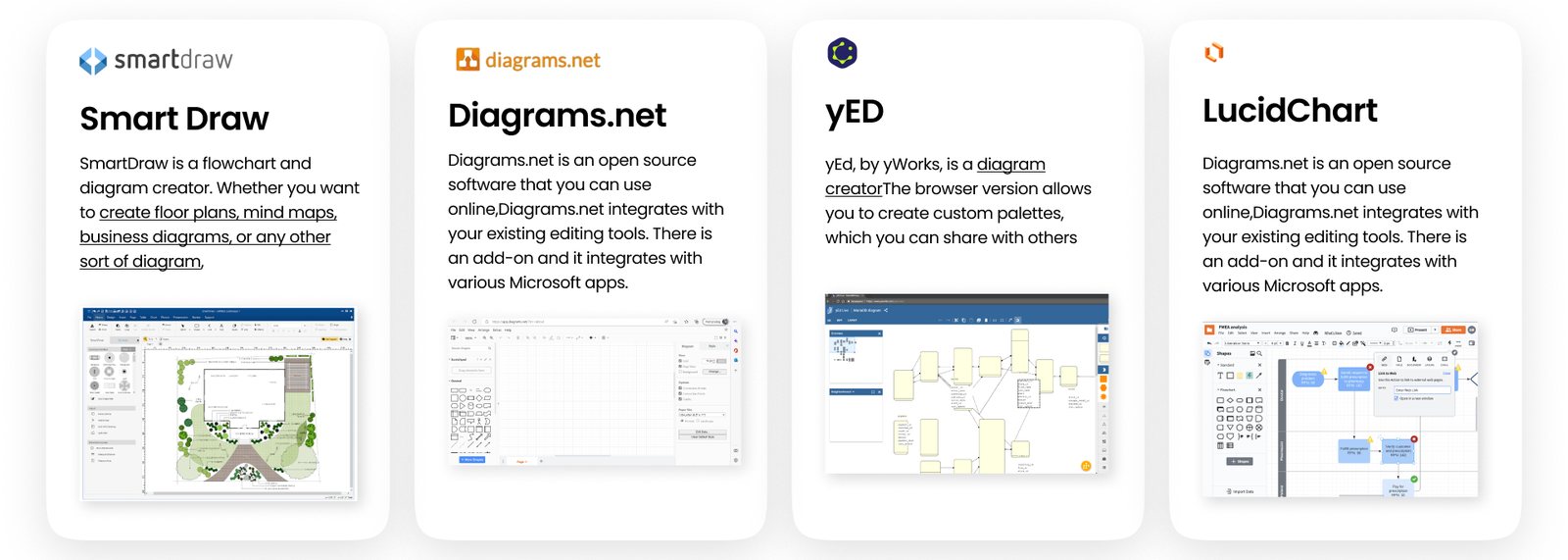
AutoCAD and Plant 3D are powerful but steep and expensive. SketchUp, Lucidchart, diagrams.net, yEd and SmartDraw are easy but know nothing about engineering. CORE's space was in between: diagram-tool ease, with engineering objects that hold real data.

Diagram tools analysed: SmartDraw, diagrams.net, yEd and Lucidchart
Diagram tools I studied for interaction patterns
Process

From flows to a working canvas

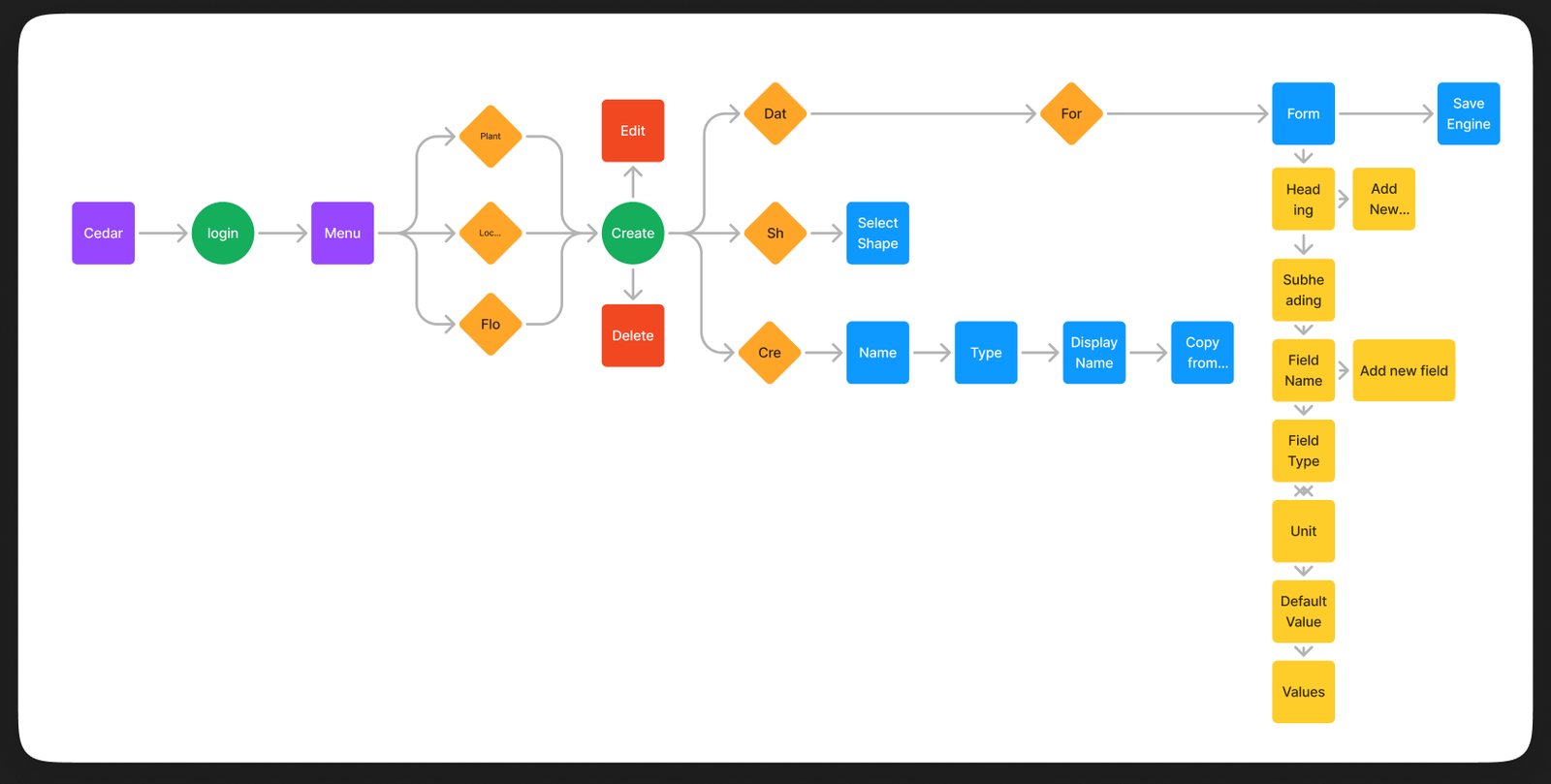
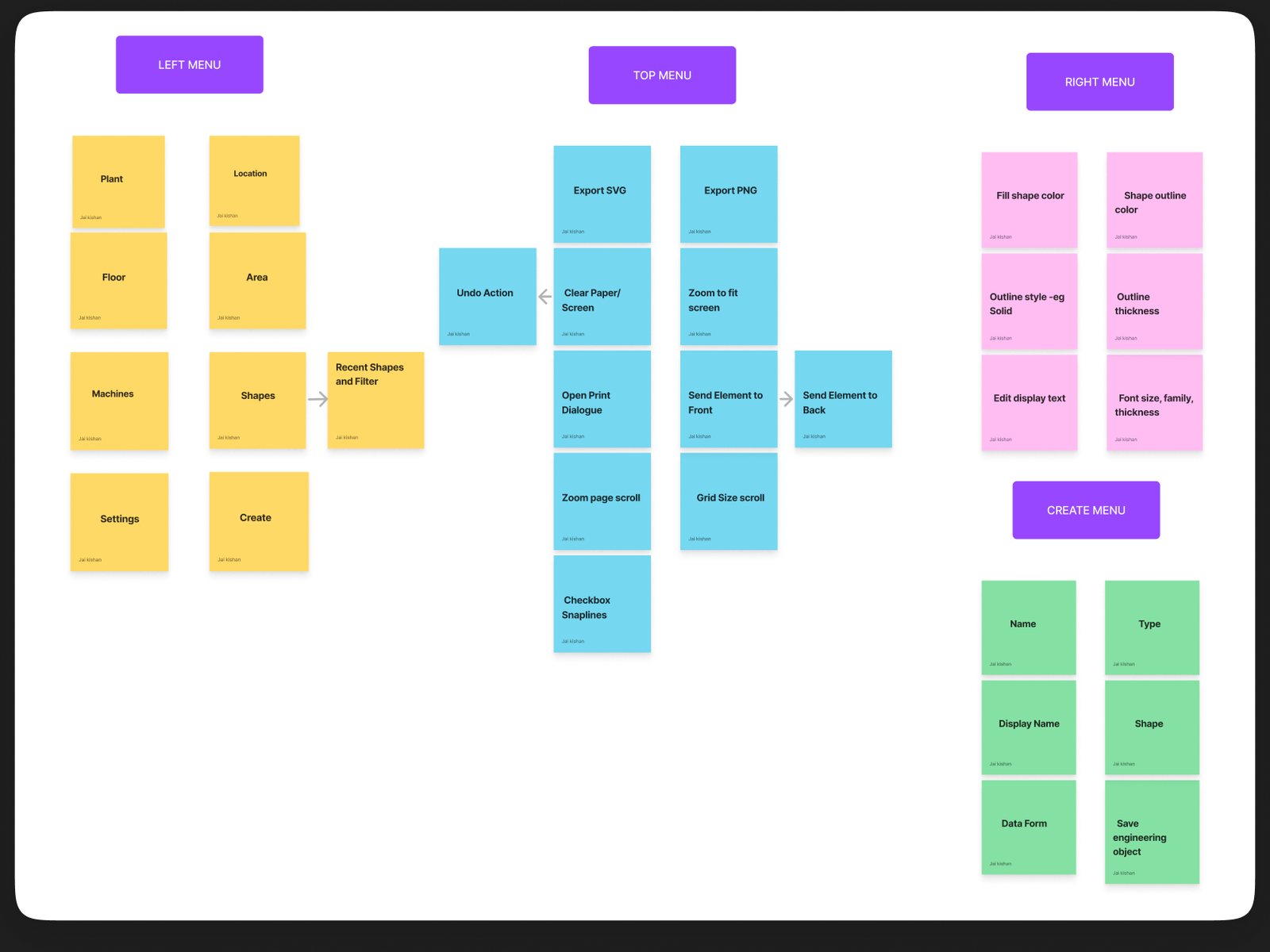
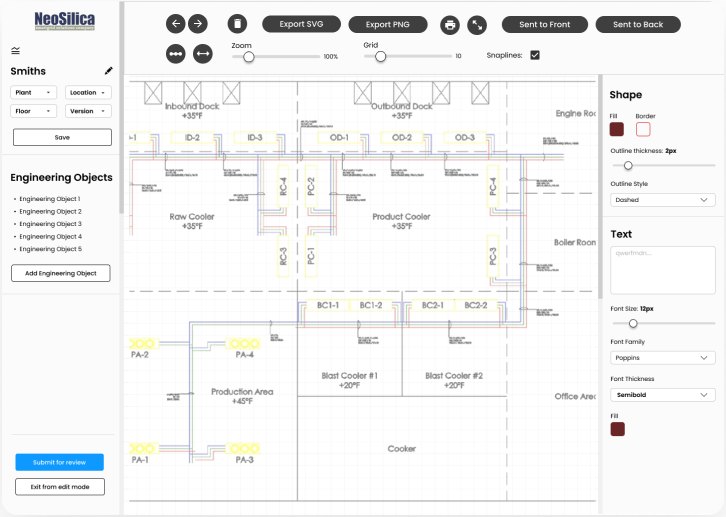
I mapped the core flow first: customer, then location, then system, then drawing. I sorted every canvas tool into left, top and right menus, and wireframed with the team in short sprints. Load analysis (LAD) and scope of work (SOW) came later, in phases.

User flow from login to creating an engineering object and its data form
Flow · login to saving an engineering object
Sticky notes sorting tools into left, top, right and create menus
Menus · every tool sorted by where it lives
Wireframe of the canvas with a cold-storage floor plan
Wireframe · the canvas over a real floor plan
Wireframe of creating an engineering object with a data form
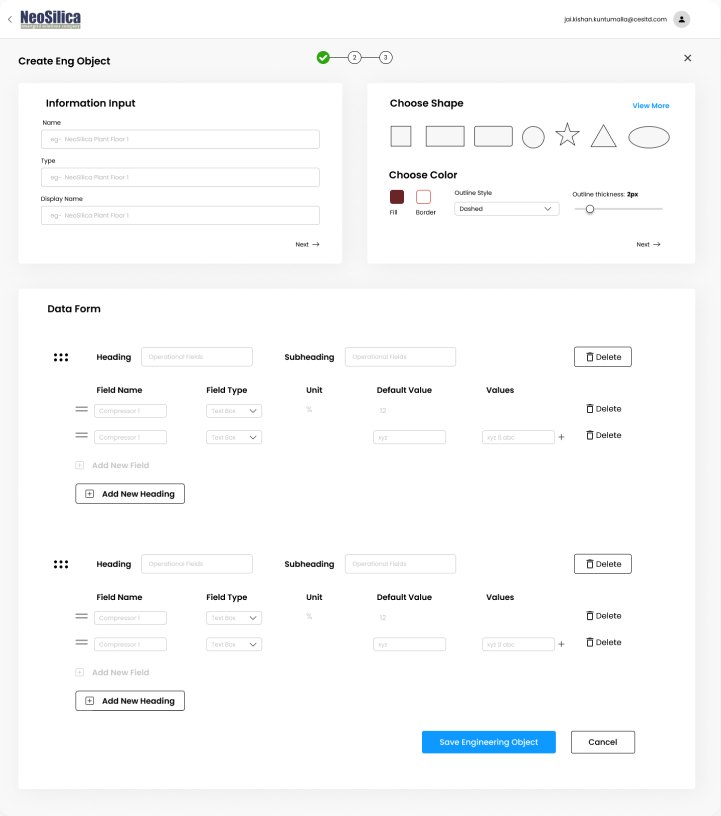
Wireframe · an object with its own data form
Six early wireframes of templates, systems, canvas and explorer
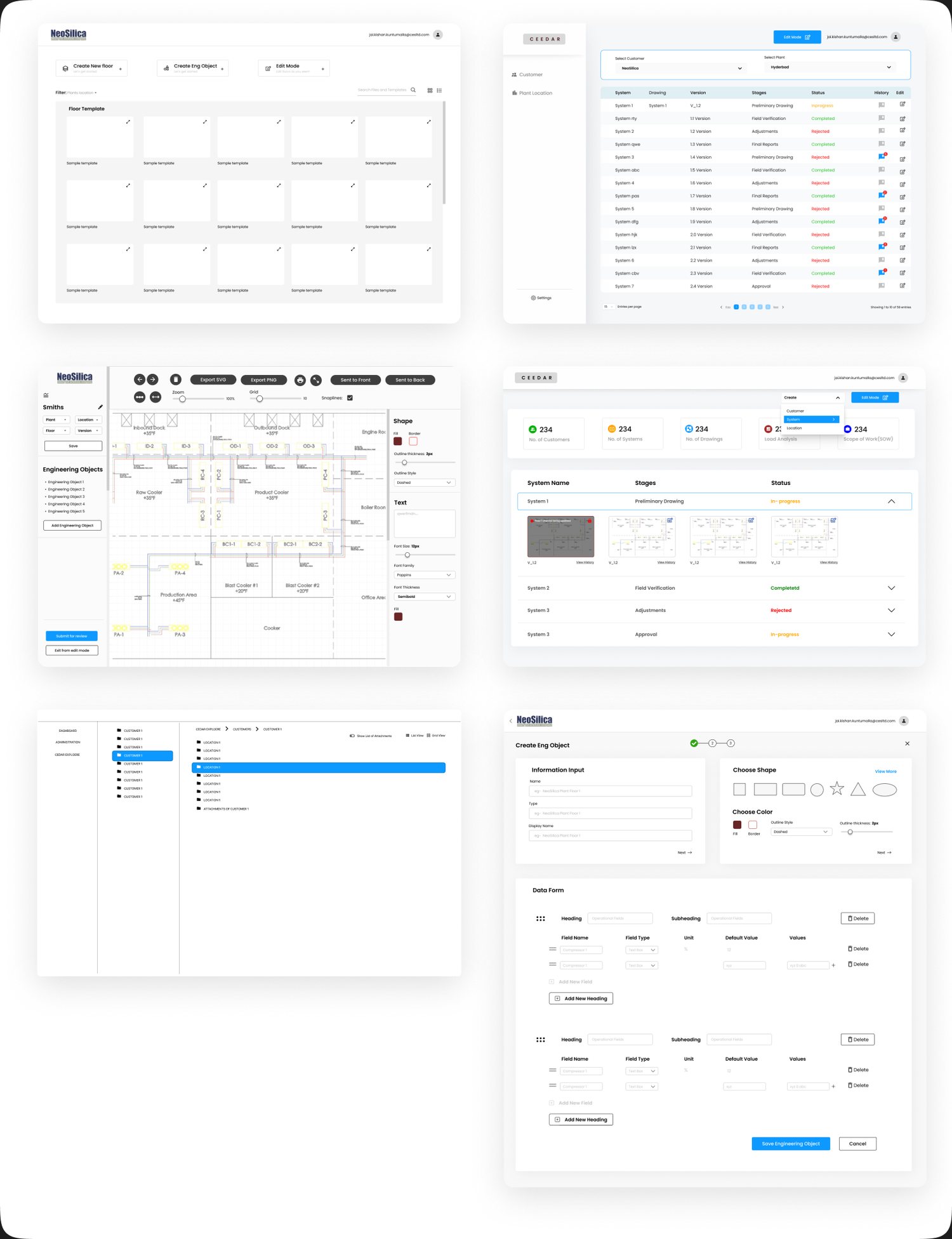
Early screens · templates, systems, explorer
Four high-fidelity CORE screens: login, home, LAD list and LAD drawing tool
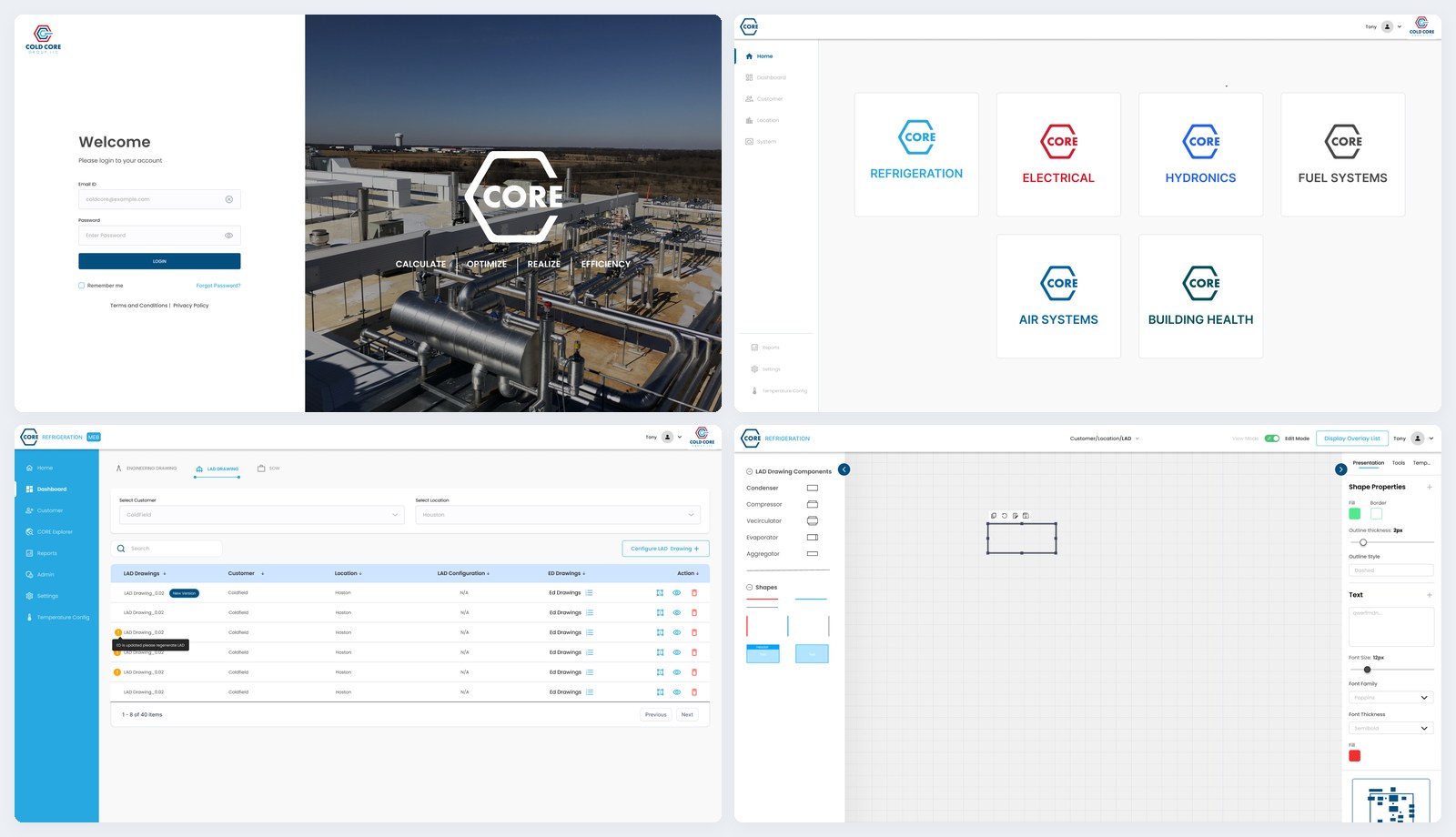
Hi-fi · login, home, LAD list and drawing tool
Light theme LAD canvas under the CORE brand
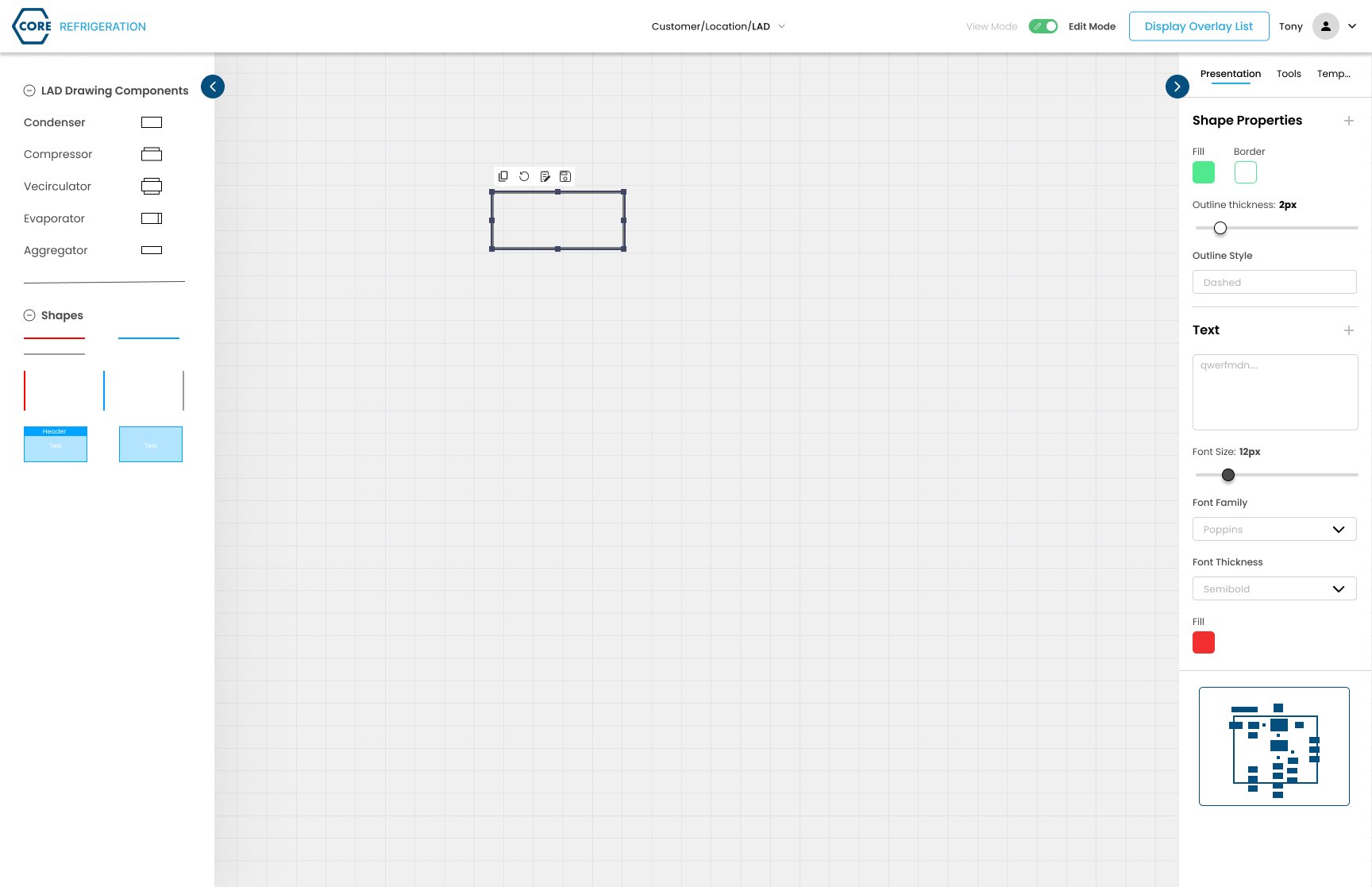
CORE · the light theme it shipped with
The key trade-off

Shapes vs objects

Option A

A general diagram tool

  • Familiar boxes, lines and labels
  • Quick to build and learn
  • The drawing is only a picture: no data, no analysis
Option B

Engineering objects with data forms

  • Compressors, condensers, vessels and pipes with fixed proportions
  • Each object opens a data form: pressures, temperatures, capacity
  • The same data generates the load analysis drawing

Why: once objects carry their data, one drawing can feed load analysis and scope of work, instead of being redrawn for each. Plain shapes stayed in the library for annotations.

Try it

Use the tool

A working version of the tool, coded from the final light-theme design and following the v2.4 user guide step by step. Follow the red pulse, or jump between steps on the right. Drag objects onto the canvas, fill a data form, then turn the drawing into a load analysis and an MEB report.

One brand and one theme throughout: CORE, light, as it shipped. Customer names and values are samples.

A · Set up

Customers, locations and systems, a dashboard of drawings, locks while someone else edits, and an explorer for every file.

B · Draw and analyse

The canvas, data forms on every object, temperature settings, and load analysis generated from the drawing.

Design decisions

What made it work

Hierarchy

Customer, location, system

Three selects at the top of the dashboard mirror how the business is organised, so every drawing has one obvious home.

Canvas

Objects left, properties right

Both panels collapse to give the drawing room, with a minimap for large plants.

Data

A form behind every object

Mandatory fields are validated before saving, and values preview right on the canvas.

Safety

Locks and versions

A drawing being edited is locked for others, who can still view it. Every change is logged against a version.

Offline

Keep working without a network

Edit one drawing offline with a clear state, then auto-sync when the connection is back.

Analysis

Load analysis from the drawing

Pick drawings, adjust values in one table, and generate the LAD, then an MEB report.

Outcomes

What shipped

14

modules in the v2.4 user guide, from login to offline mode

3

kinds of document from one drawing: engineering, load analysis and MEB

2

themes, dark first and light after the CORE rebrand

The tool was built and documented in a 46-page user guide for version 2.4. When Cold Core took the product over from Neosilica, it was renamed CORE and the home screen was split by system type: refrigeration, electrical, hydronics, fuel, air and building health. Cost analytics were scoped out of this phase.

Reflection

What I'd keep, what I'd change

Go around the blocker. Contacting the client directly turned a vague brief into real goals. I'd do it sooner next time.

Learn the domain properly. Load analysis and refrigeration terms took me time. A short session with an engineer at the start would have saved rework.

Build themes on variables. We designed dark only, then rebuilt light by hand. With variables, that would have been one switch.

Next case study

My Learning

Read case study →